
Workspace surfaces
Short control maps for Pulse, Meetings, Academy, Workflows, Reports and Home.
Pulse#
Pulse lists companies and deals so you can open a focused Pulse drawer for risks, next steps and related conversations.
Controls on the Pulse list.
Meetings#
Meetings shows upcoming and recent calendar events with notetaker status, join control and conversation type assignment.
Controls on Meetings.
Academy#
Academy is the account knowledge library of saved conversations and snippets, organized in folders.
Controls on Academy.
Workflows#
Organization Workflow is the account-manager matrix that maps departments, conversation types and automations.
Creating or editing a conversation type uses the Conversation Types flow documented under Settings → Conversation Types.
Controls on Organization Workflow.
Reports#
Reports lists Ask Meetric query runs and scheduled email subscriptions. Completed Ask reports show Markdown answers and only the conversations the answer actually cites, with links that open those sources.
Controls on Reports.
Home#
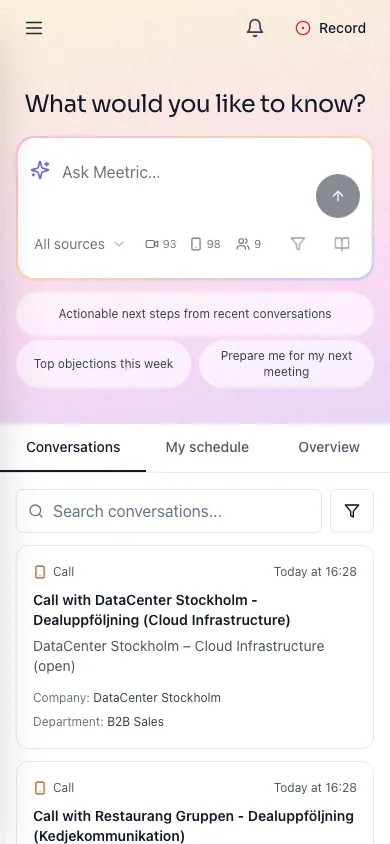
Home starts with What would you like to know? Use the question box or an example question to begin. On a phone, tap the question box to type directly on Home. The box grows as you type, and three example questions are shown. Send your question, or select an example, to open the full chat and submit the question. To continue an existing chat with an unsent draft, open Menu → Ask AI; that draft is separate from the Home question box. To start a separate chat, select New chat in the desktop sidebar or mobile Menu.
On mobile, Home opens Conversations, followed by My schedule and Overview. These three tabs are fixed; desktop tab preferences stay unchanged. Type in the two-line AI composer, which grows with your text, and submit to open chat. Record is beside the notification bell. Overview options contains saved views and widget editing. If there are no conversations, you can record or upload a file, and connect your calendar if it is not connected yet. Mobile conversation previews show type and date, a semibold title aligned with the summary, and labelled company or participants and department. Topic counts and status badges are omitted from this list. The three suggestions below the composer start a chat. You can zoom in with two fingers or a double tap on any page. In My schedule, the top right of each mobile card shows Join meeting for a meeting link, otherwise Open. Your own upcoming meetings offer Prep me when your account has access, using the same preparation view and history filter as Overview.
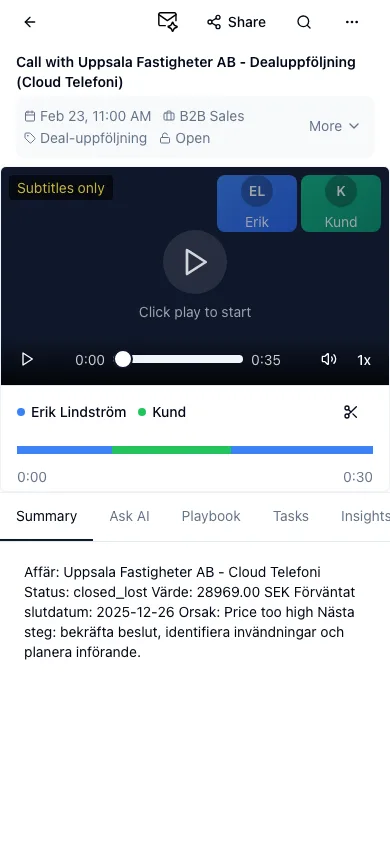
On mobile, opening a conversation fills the screen. Use the back arrow to return to the list. Share, Search and More actions stay in the toolbar; Rename conversation is in More actions. The grey block below the title shows key metadata. More replaces it with the available editing controls; Show less restores the compact view. Summary, Ask AI, Playbook, Tasks, Insights and Transcript share one row of tabs, subject to your access. Use the email icon beside Share in the header to generate a follow-up email from any tab when permitted. Display text matches the tab size, and the speaker timeline is compact. Unavailable recordings show a short notice. Demo accounts without a recording use a simulated player with participant tiles and transcript captions. Speech playback requires the speech service; otherwise the player shows Subtitles only.
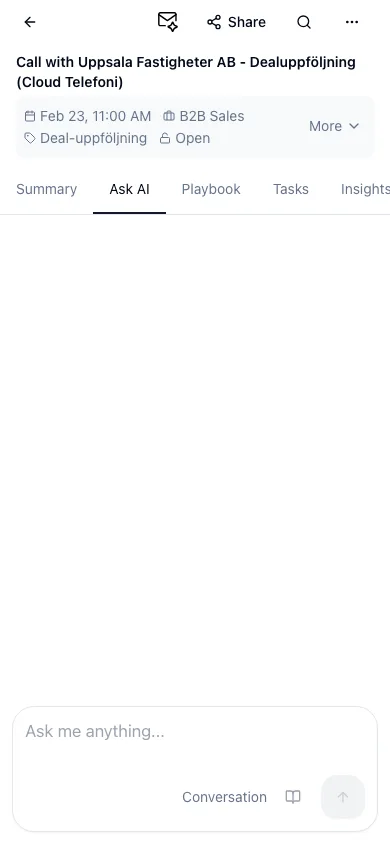
Ask AI opens the same mobile chat directly inside the conversation. Type a multiline question and submit it to ask about this conversation. Switching to Summary or Transcript keeps your chat and draft.
Home tabs and overview actions. Ask chat controls are listed on the Ask page.