
Meetric AI (Ask Meetric)
Meetric AI helps you get answers from your conversations. Ask questions in natural language, get instant evidence-backed responses from your conversation library and uncover patterns you might have missed.
What is Meetric AI?#
Meetric AI is an AI-powered assistant that understands your conversations and can answer questions about them in natural language. Think of it as having a research assistant who has read every meeting, call and conversation in your organization.
Search & Retrieve
Find specific information across all your conversations
Analyze & Summarize
Get insights and summaries from multiple conversations
Identify Patterns
Discover trends, recurring themes and anomalies
How Meetric AI works#
Meetric AI uses advanced AI to understand your questions and retrieve relevant information:
Understanding
Meetric AI analyzes your question to understand what you're looking for
Searching
Searches across transcripts, summaries and insights using semantic understanding
Synthesizing
Combines information from multiple sources to form a comprehensive answer
Presenting
Provides the answer with references to source conversations
Accessing Ask Meetric#
You can interact with Meetric AI (Ask Meetric) in several ways:
Opens the AI panel on desktop pages such as Conversations. On Home, use the question box or select New chat in the sidebar.
Context-aware questions about specific conversations
Ask questions about dashboard metrics and trends
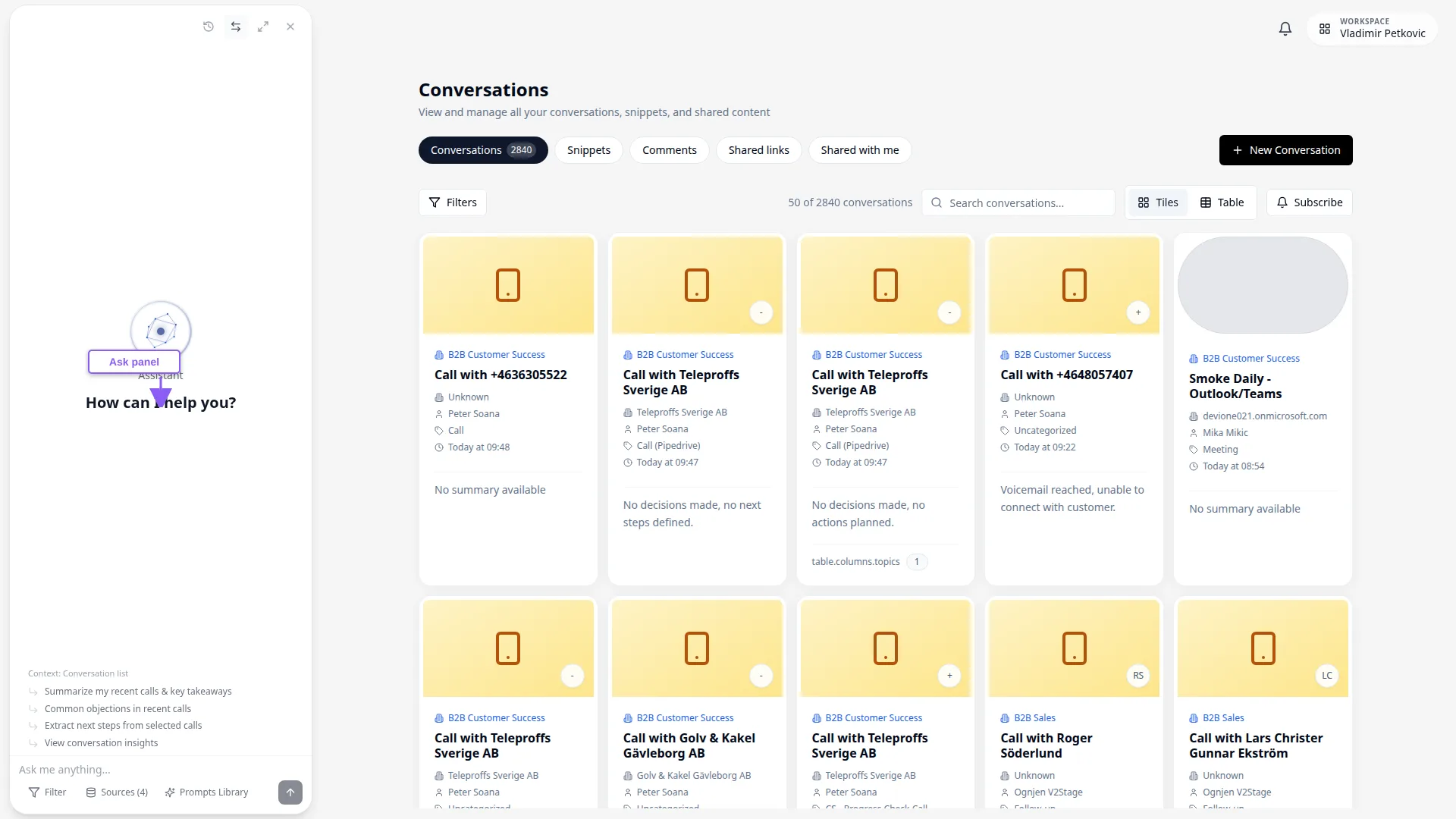
Controls in this area#
Entry points and in-panel controls that change Ask Meetric scope or thread state. Cancel, Close and toast dismiss are omitted.
Asking Questions#
Meetric AI understands natural language, so you can ask questions as you would to a colleague. No special syntax or commands required.
Types of Questions#
Here are the main categories of questions Meetric AI can answer:
Factual Retrieval
Find specific information mentioned in conversations
Summarization
Get summaries across multiple conversations
Comparison
Compare and contrast information
Trend Analysis
Identify patterns and changes over time
Action Items
Track commitments and follow-ups
Crafting Better Questions#
While Meetric AI understands natural language, more specific questions yield better answers:
Specific criteria and timeframe help Meetric AI focus the search
Defining scope (specific customer) makes the answer more relevant
Adding context helps Meetric AI understand which conversations to search
- Include time ranges when relevant ("last week", "Q1 2024")
- Mention specific people, companies or topics to narrow results
- Ask follow-up questions to drill deeper - Meetric AI maintains conversation context
- Use "why" and "how" questions for deeper analysis
Real-World Query Examples#
Here are proven query patterns from successful Meetric users:
Context & Conversation Selection#
Meetric AI can search across all your conversations or focus on specific ones. Understanding context helps you get more precise answers.
Global vs. Contextual Queries#
Global Mode
Search across all accessible conversations
When: For questions across your available conversations, without a specific conversation selected or open. Your permissions and active filters still apply.
Contextual Mode
Focus on specific conversation(s)
When: Automatically activated when asking from a conversation page
You can switch modes or specify context in your question:
# Global search
"What are common objections in sales calls?"

# Specify timeframe
"What are common objections in sales calls from last week?"

# Specify people
"What did Sarah discuss in her calls with enterprise customers?"

# Specify company
"Summarize all conversations with Acme Corp"

# This conversation only
"What action items were mentioned in this call?"
Using Filters#
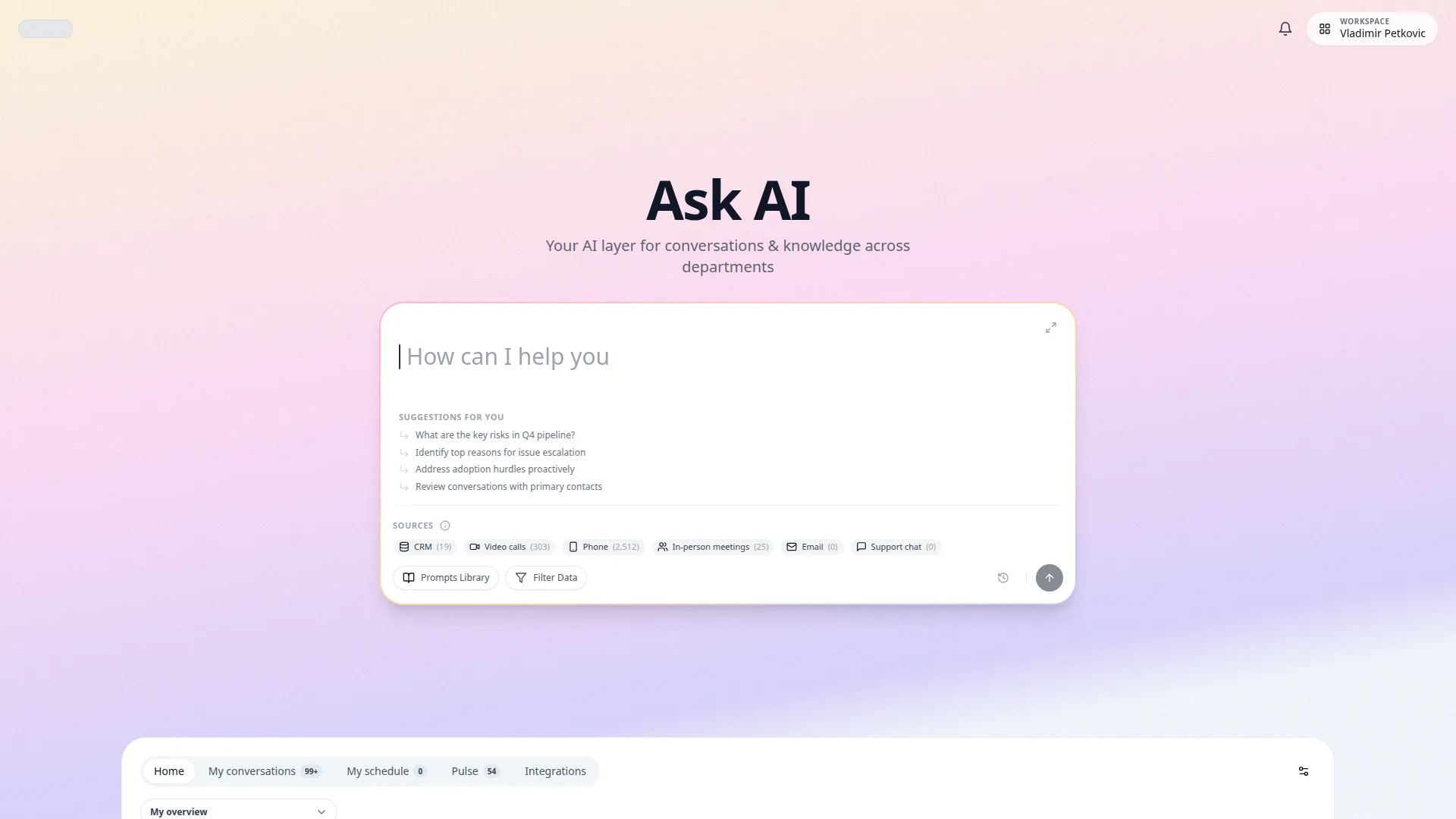
On mobile Home, open Filters beside Sources. Applied filters appear as removable chips. You can select several options in a filter list. The filter window stays open until you select Apply filters or close it. Apply filters to narrow Meetric AI's search scope:
- Medium: "video meetings only", "email threads", "chat conversations"
- Privacy: "only open conversations", "include private conversations I own"
- Conversation Type: "only discovery calls", "renewal conversations"
- Owner: "owned by me", "calls owned by Alex"
- Company: "from Acme", "only enterprise accounts"
- Team: "from support team", "sales pod conversations"
- Date Range: "in the last 30 days", "since January", "Q1 2024"
- Department: "in sales calls", "from support team", "engineering meetings"
- Topics: "calls mentioning onboarding", "conversations about pricing"
- AI Fields: "where churn risk is high", "field value is competitor_x"
- Trackers: "tracker shows discount request", "mentions procurement delay"
- Saved Views: "use my QBR view", "run Ask with existing advanced filter sets"
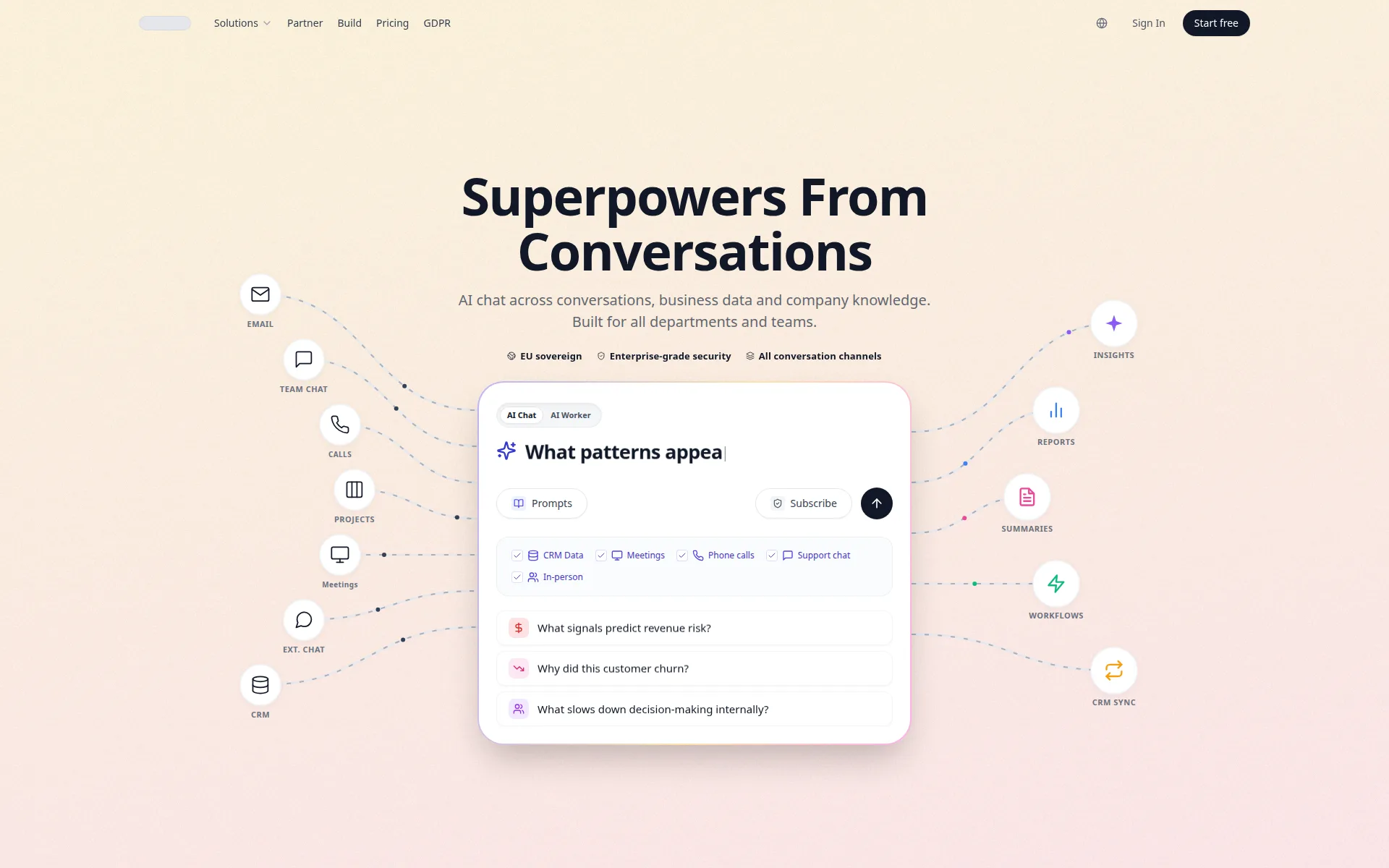
Sources and Active Filters#
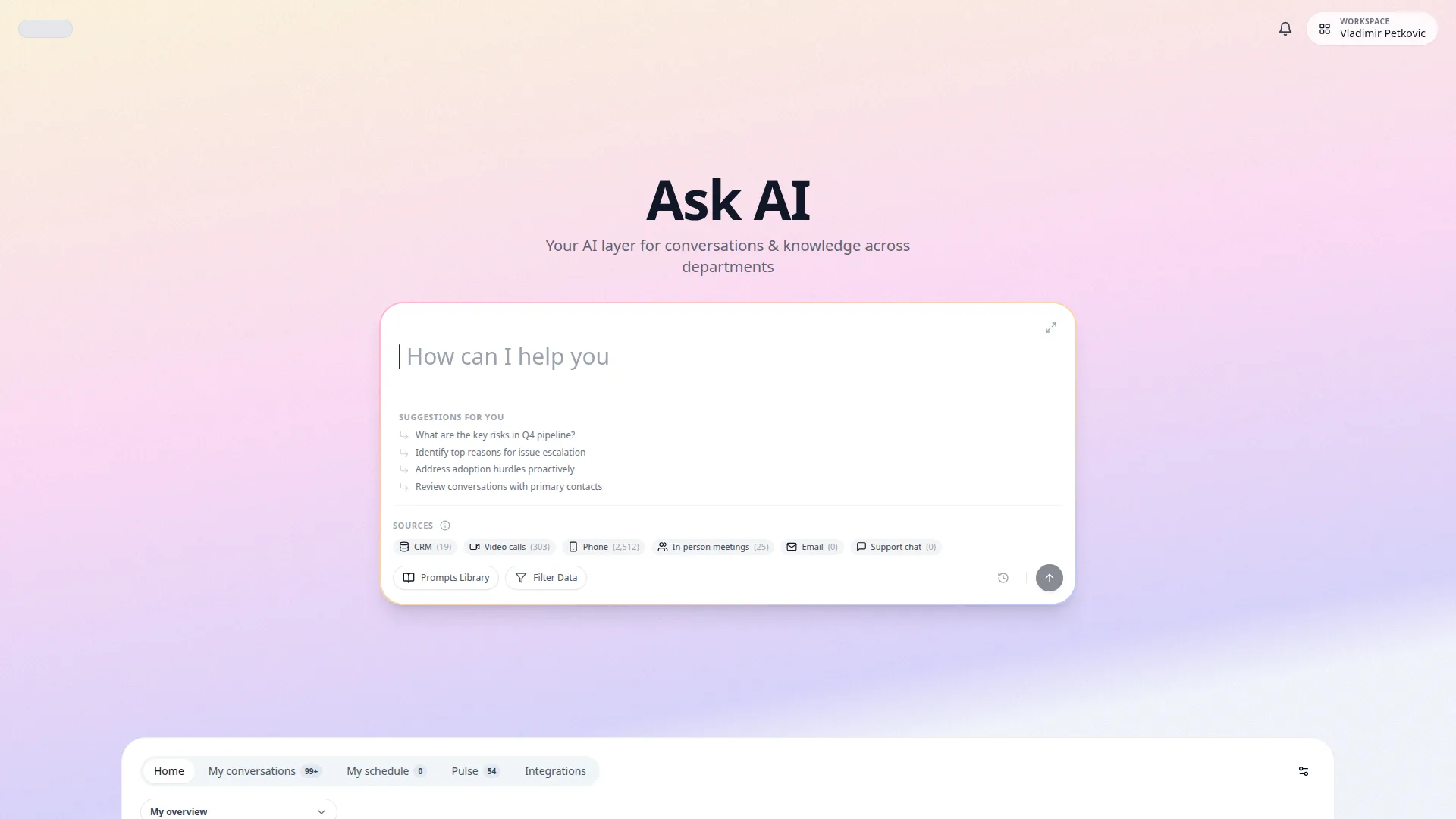
On Home and in AI chat, Sources appears to the left of the icons, including on mobile. Video, phone and in-person icons show conversation counts for the current filters; CRM opens companies. Select an icon to inspect its sources. Hover or focus to see exact totals when counts are shortened. Schedule counts all available past and future meetings in your connected calendar. This covers events available through the calendar integration, not a complete lifetime calendar archive. Email shows accessible imported threads when available. Zero-count sources are grey; zero does not mean disconnected.
- Home and full-page chat: Select a source icon to choose conversations, then Apply. Selected counts appear on the corresponding icons. Filters and Prompts remain beside the source controls.
- Contextual AI panel: Use its compact source and filter controls, including Add context. Check the active sources and filters before sending your question.
- Active filters bar: displays currently applied filters as removable chips.
- Clear filters: use chip clear actions or clear-all to broaden scope quickly.
- Hover over a disconnected Schedule or Email icon, or activate it by touch or keyboard, to open its connection link in Integrations. Schedule is not connected until you connect a Google or Microsoft calendar. This also sets up the notetaker; its settings control which meetings it joins. Failed checks show unavailable. Previously imported emails remain accessible after disconnecting.
- Select a connected Schedule icon to open the same schedule view used on Home, with upcoming-date filters and the past 14 days. It opens as a modal on desktop and a full-screen view with Back on mobile. Closing it keeps your current chat and draft. Schedule events are not added to selected conversations.
Prompts Library#
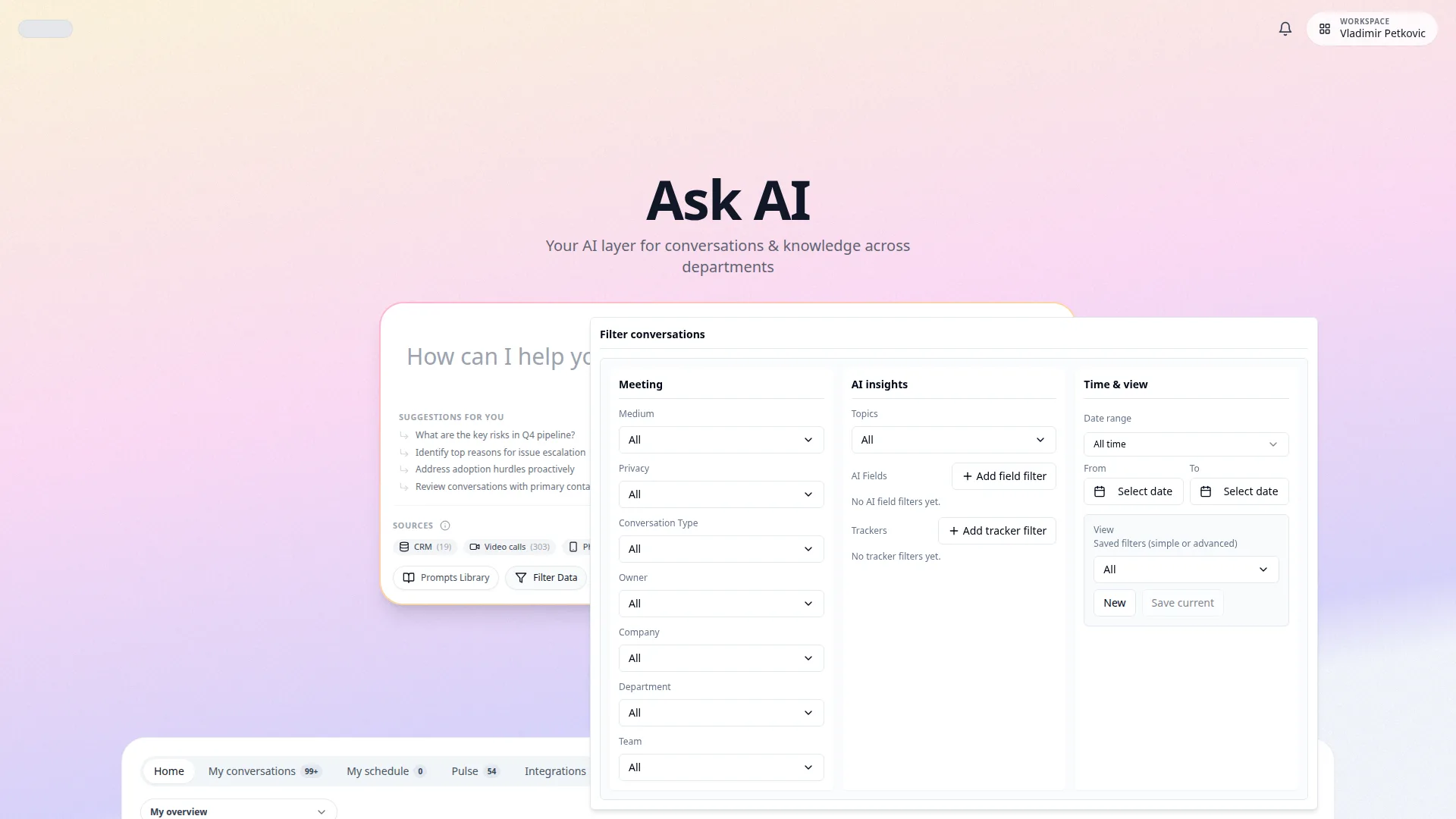
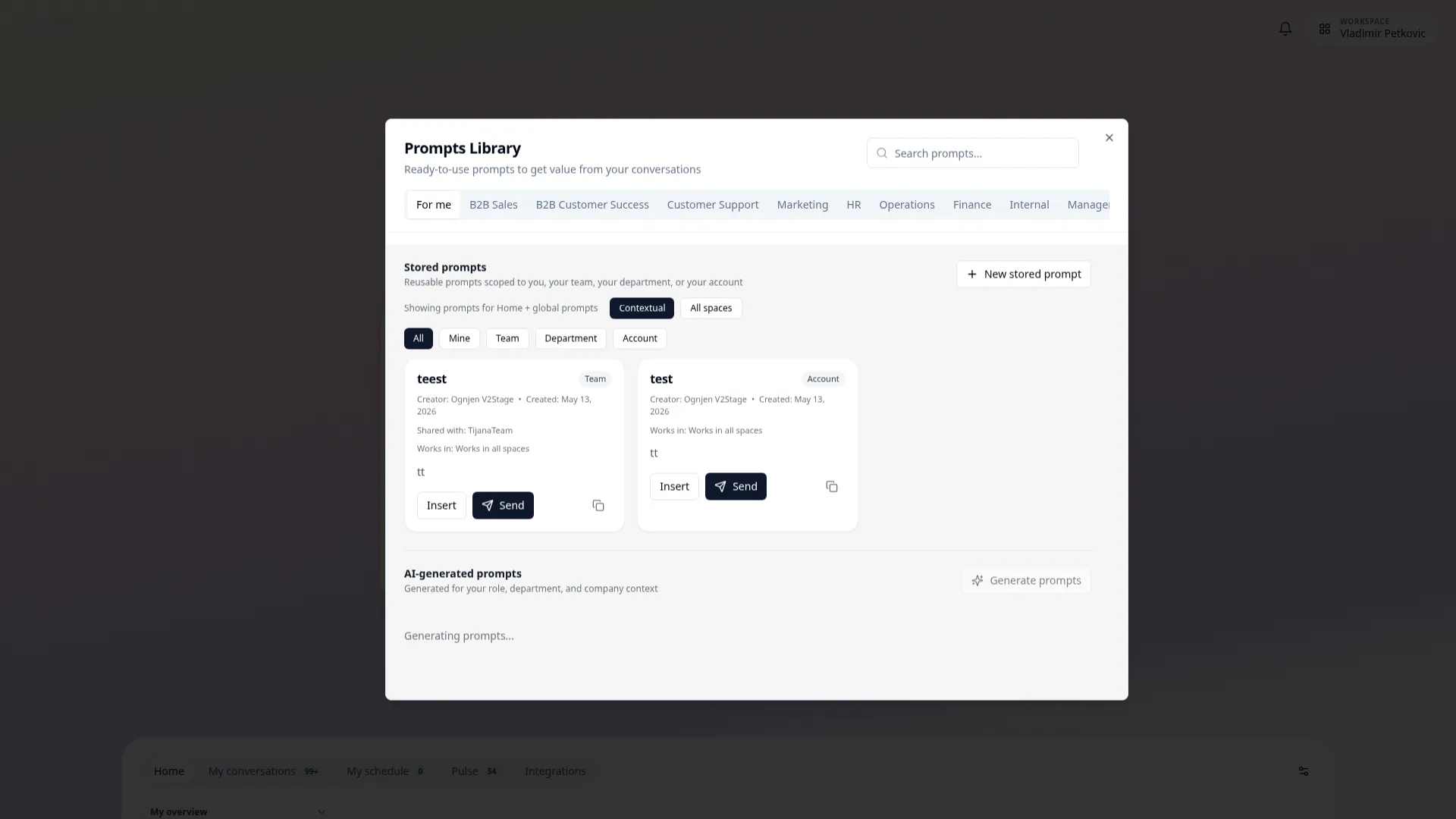
On mobile Home, open Prompts beside Sources. Insert keeps you on Home to edit; Send starts the chat. Use Prompts Library to run reusable prompts without rewriting the same query each time.
- Stored prompts: create personal/team/department/account scoped prompts.
- Insert: place a prompt into Ask input for edits before sending.
- Send: run a prompt immediately in Ask.
- Contextual vs All spaces: switch between prompts tied to current context and global prompts.
AI Chat History#
Return to previous chats from the sidebar or from inside a chat.
- New chat: Start a separate chat from the desktop sidebar or mobile Menu.
- Pinned and Recent: Return to chats from the desktop sidebar. Recent shows up to four other recent chats.
- Search: Select the search icon beside Recent to find older chats.
- Chat history: Inside a chat, use the Chat history button in the header to open previous chats.
Conversation References#
Meetric AI can include source references in answers. When references are present, you can click them to:
- View the original conversation
- Jump to the specific timestamp where information was mentioned
- See surrounding context in the transcript
- Verify accuracy and get more details
Best Practices#
Get the most out of Meetric AI with these proven strategies from power users.
Daily Workflows#
Morning Standup Prep
- 1. Ask: 'What meetings did I have yesterday?'
- 2. Follow up: 'What action items were assigned to me?'
- 3. Plan: 'Show me my scheduled calls for today'
Pre-Call Research
- 1. Ask: 'Summarize previous conversations with [Company Name]'
- 2. Follow up: 'What were their main concerns last time?'
- 3. Prepare: 'What commitments did we make to them?'
End of Day Review
- 1. Ask: 'What were the key takeaways from today's calls?'
- 2. Track: 'What follow-ups do I need to complete?'
- 3. Share: Export summary for team update
Team Collaboration#
Use Meetric AI to facilitate team knowledge sharing:
- Onboarding: "Summarize how we typically handle enterprise demos" helps new team members ramp up
- Best Practices: "What techniques do top performers use in discovery calls?" surfaces winning patterns
- Handoffs: "Summarize Sarah's conversations with Acme Corp" helps during account transfers
- Training: "Show examples of effective objection handling" creates coaching opportunities
Strategic Insights#
Use Meetric AI for higher-level strategic analysis:
Market Intelligence
- What competitors are customers mentioning most?
- What market trends come up in executive conversations?
- How are economic conditions affecting buying decisions?
Product Strategy
- What features do customers request most frequently?
- Which pain points come up in conversations with churned customers?
- How are customers using our product differently than intended?
Sales Optimization
- What's the average deal cycle based on successful sales calls?
- Which value propositions resonate most with enterprise customers?
- At what point in conversations do customers typically commit?
Accuracy & Verification#
While Meetric AI is highly accurate, always verify important information:
- Click through to source conversations for critical decisions
- Check multiple references if an answer seems surprising
- Ask for clarification if the answer is ambiguous
- Use "Show me the transcript" to see full context
Advanced Techniques#
Master these advanced features to unlock Meetric AI's full potential.
Multi-Step Analysis#
Build complex analyses through conversation with Meetric AI:
You: "What are the most common reasons customers mention for
      considering our competitors?"

Meetric AI: [Lists top 5 reasons with examples]

You: "For each of those reasons, how have we successfully
      addressed them in won deals?"

Meetric AI: [Shows successful counter-strategies]

You: "Create a playbook for handling these objections"

Meetric AI: [Generates structured playbook with examples]
Meetric AI maintains conversation context, so each question can build on previous answers.
Comparative Analysis#
Compare segments, time periods or cohorts:
Sentiment & Tone Analysis#
Ask Meetric to analyze emotional tone and sentiment:
- "What was the customer's sentiment in the most recent call?"
- "Identify calls where customers expressed frustration"
- "How has customer satisfaction trended over the quarter?"
- "Which product areas generate the most positive feedback?"
Next Steps
Ready to start using Meetric AI (Ask Meetric)? Here's what to explore next: